
Select video preview
You can select any frame of the video as a preview image
Step 1: Click +New, then Create post.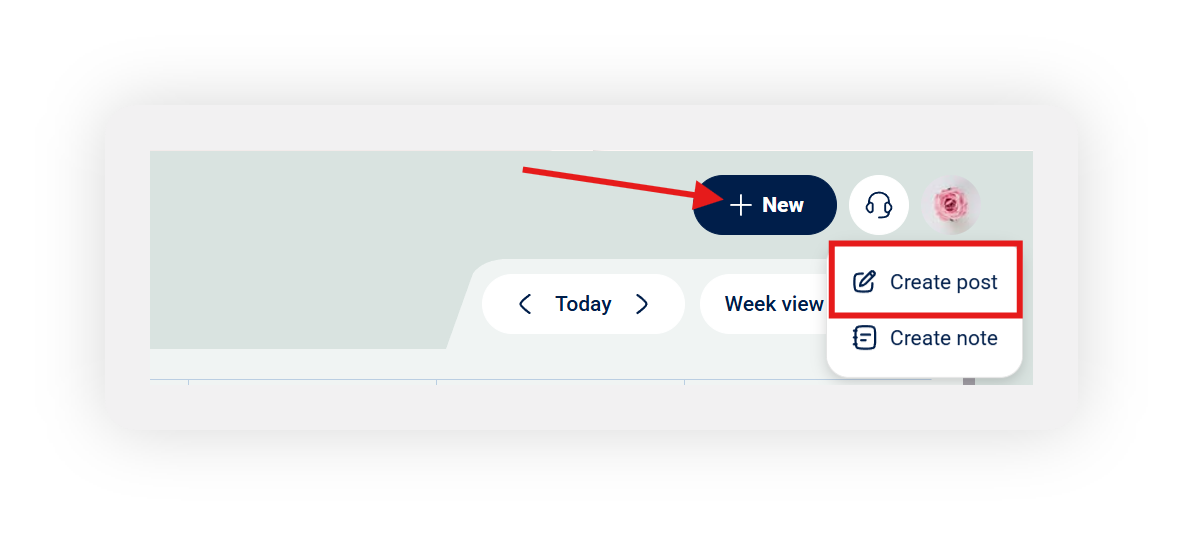 Step 2: Create a post with a video, then click the pencil icon.
 .png?width=670&height=463&name=framed-11-8a3781a9-5de3-4529-bb21-c7792923e46f%20(1).png)
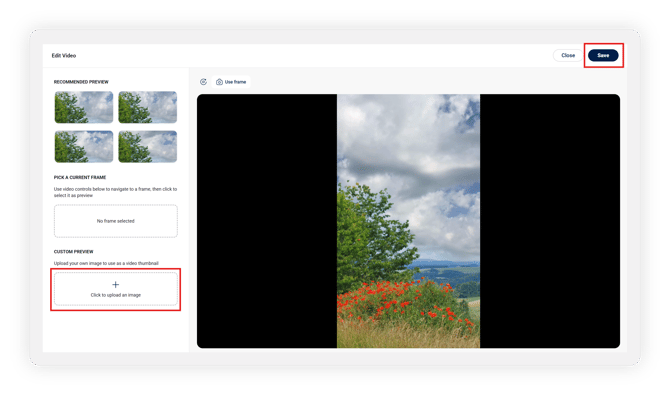
Step 3: Edit the video preview, either choose one from the video or upload an image.
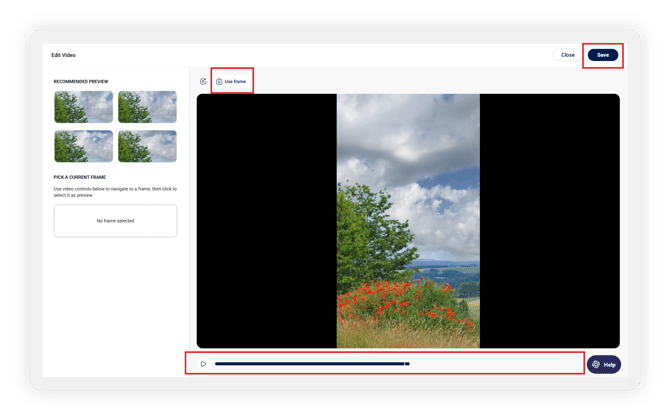
Choose a preview from the video:
You can choose a preview directly from the video and use the mouse to adjust where in the video you want to pick the preview from. When done, click Use frame and Save.
Upload an image to use as a preview:
This is possible for all networks except LinkedIn, due to API limitations.
Click "Click to upload an image" and choose a file from your device.
Once this is added, click Save, and you are done.
Step 4: Check if the video preview has been adjusted, and you are done.
.png?width=351&height=537&name=framed_screenshot_10%20(1).png)